Free X (Twitter) banner maker with device preview
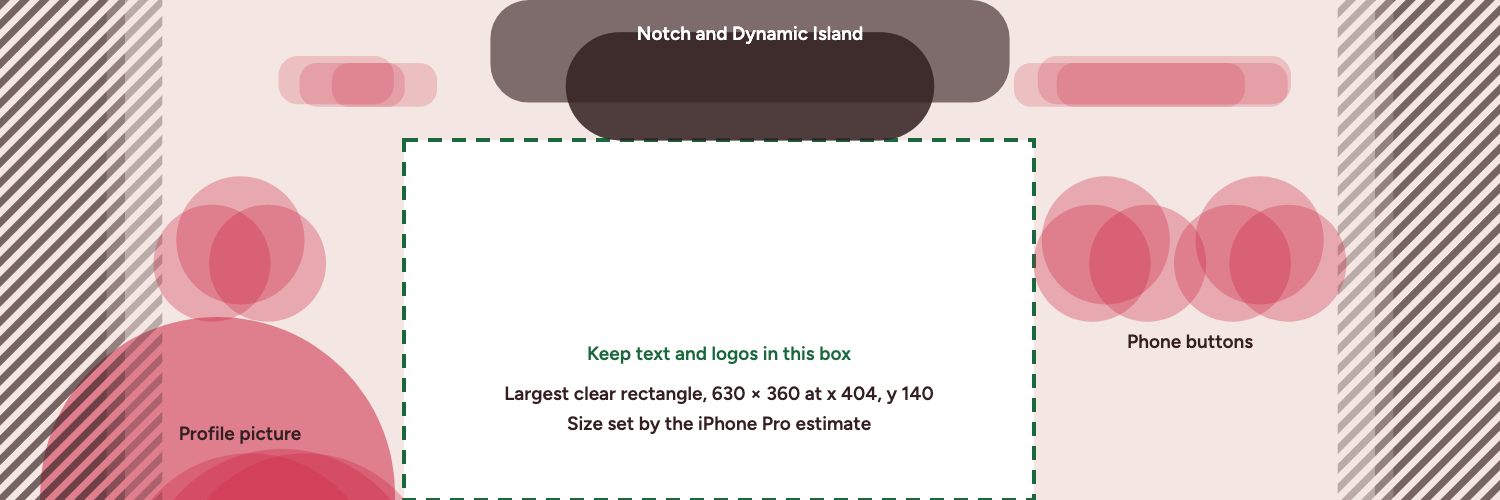
Overbite is a free Twitter banner maker, also called an X banner maker or X header maker, that runs in your browser with no account. You build the 1500×500 image on a canvas and watch what the profile picture, Dynamic Island, status bar and phone buttons cover on web and iPhone while you work.
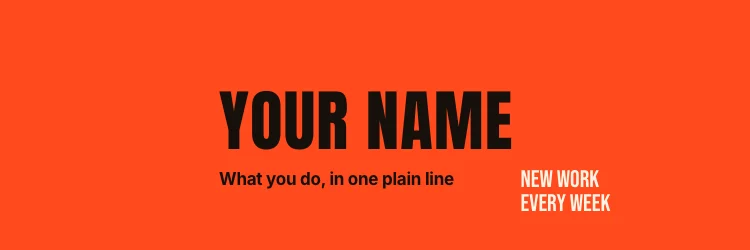
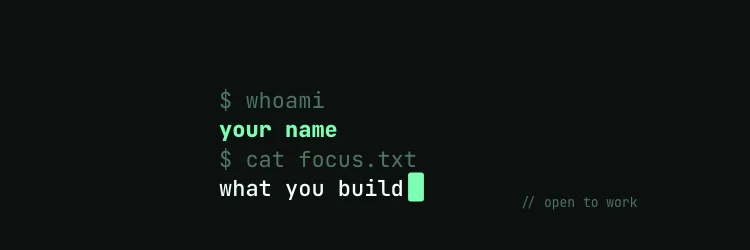

Start from one of the free banner templates, or from a blank canvas.
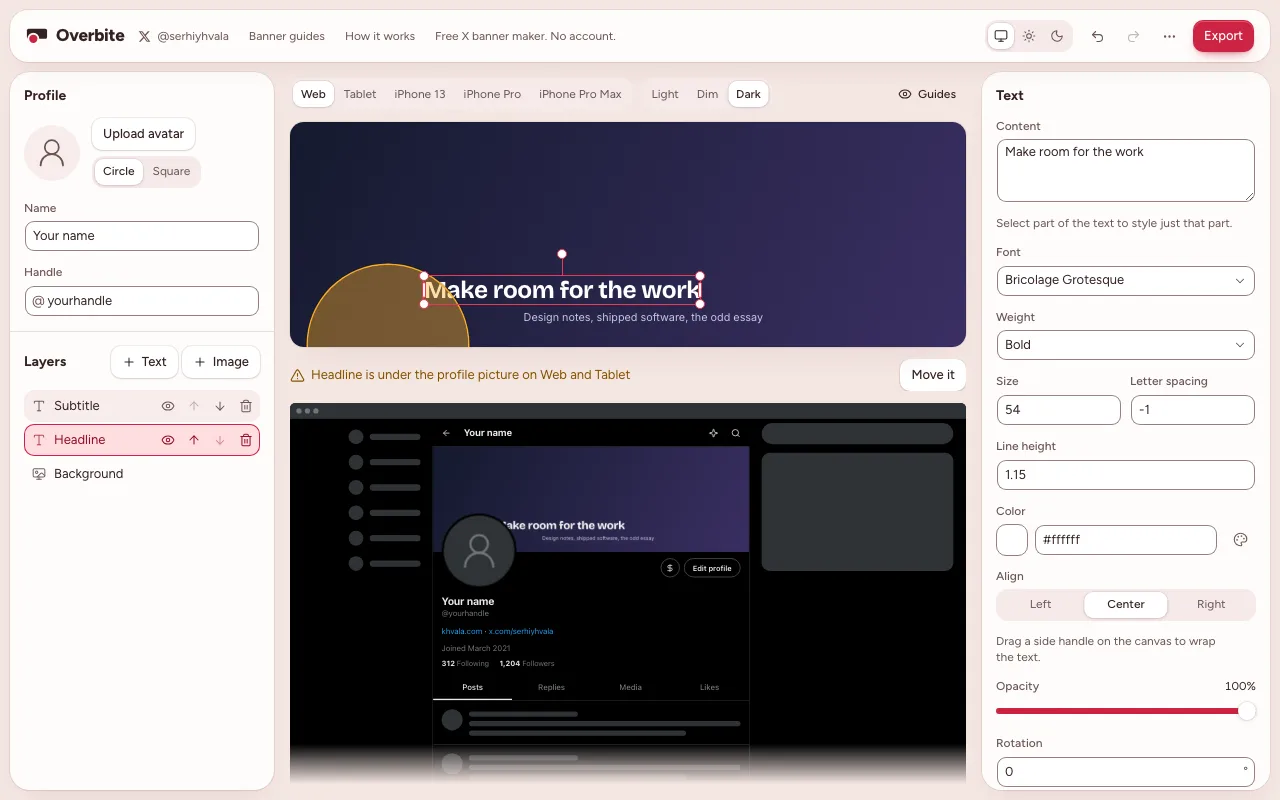
What can you make with this X banner maker?
The canvas is the size X recommends for a header, 1500×500 pixels. You work in layers, the way you would in a design tool.
- Add text, choose a font from the list or upload your own, and style part of a line differently from the rest.
- Add PNG, JPEG, WebP, GIF, SVG or AVIF images, then resize, rotate, mirror and round them.
- Set the background to a solid color, a gradient, or an image you can zoom, position and dim.
- Snap layers to the banner's center and to each other while you drag.
- Pick colors from your banner and your profile picture.
- Undo, redo, duplicate, copy and paste with the usual keyboard shortcuts.
Add your own profile picture, name and handle, and the preview shows them in light, dim and dark themes.
Why preview a banner on each device?
A banner does not look the same on every screen. The X app on the iPhone 13 cuts about 125 pixels from each side. Across the five devices mapped here, 45% of the banner area is covered on at least one device. On measured devices alone the figure is 37%.
The preview covers web and tablet, measured on x.com, and the iPhone 13, measured from the X app. The iPhone Pro and iPhone Pro Max are estimates, with iPhone 13 layout rules applied to their screens. Android was not measured. The measurement notes explain each number.
How does the editor warn you about covered text?
Overbite checks each layer against all five devices. When a layer sits under something, a line below the canvas says so, for example "Headline is under the profile picture on all devices". When nothing is covered, the same line reads "Clear on all devices".
Press Move it and the layer goes to a clear spot, getting smaller only if moving alone cannot clear it. Fix all does this for every flagged layer at once. Those moves aim for the nearest spot that is clear on all five devices, which can sit outside the 630×360 rectangle in the safe zone guide.
How do you make a banner here?
- Add your profile picture, name and handle in the Profile panel.
- Set a background, then add text and image layers.
- Switch between devices above the canvas and watch the preview below it.
- Clear any warnings by hand, or with Move it.
- Press Export, pick a format and size, and download the file.
What does the export give you?
Export renders a fresh PNG or JPEG at 1×, 2× or 3×, which means 1500×500, 3000×1000, 4500×1500 pixels. The panel shows the real file size before you download. X recommends 1500×500, so 1× matches its advice.
The panel warns past 2 MB and suggests JPEG. That is a conservative target, because X publishes no separate header file size. The Twitter banner size guide has the details.
Where is your work stored?
Images, fonts and your banner are stored in IndexedDB on this device, and the banner saves itself as you work. Clearing your browser's site data removes them, so export anything you want to keep. The editor loads its font list from Google Fonts.