 Overbite
Free Twitter banner templates
Pick a design, press Edit this template, and change the words in your browser. All 8 X (Twitter) banner templates are free and need no email or sign-up. Each one is text on a color or gradient, at the 1500×500 size X recommends.
For creators
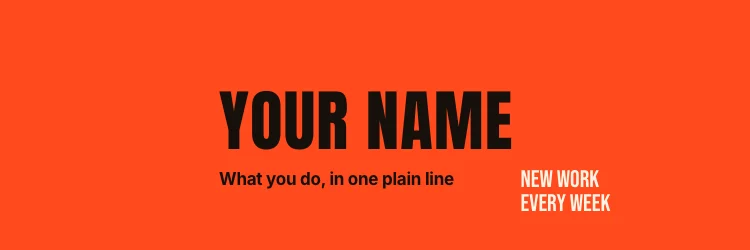
Poster
Huge condensed type on signal orange, for a name people should remember.

Hello
A handwritten greeting over a warm peach gradient, friendly and personal.
For founders

Canopy
A calm forest gradient with one clear promise and a bright status tag.

Statement
A plain white page with a single sentence, the way a good pitch deck opens.
For developers

Terminal
A shell session in green on near black, with your name as the output.

Stack
Lime and black with typewriter type and inverted tags for your skills.
For writers

Editorial
A newspaper feel with a large serif name on warm paper and a rust label.
For podcasts

On Air
Mustard and ink with tall broadcast type and a tilted episode sticker.
What has been checked on these templates?
Every template passes the editor's own check. Each layer is measured with its real font and tested against web, tablet, the iPhone 13, the iPhone Pro (estimated) and the iPhone Pro Max (estimated), with both a circle and a square profile picture. All text ends above y 440, which allows for X's note about cropping. If you make the words longer, watch the warnings below the canvas.
Opening a template replaces the banner in the editor. Your profile picture, name and handle stay. A message appears with an Undo button that brings your banner back, and Undo in the top bar does the same until you reload the page.
Do you want the safe zone template instead?
If you design in another tool, download the marks and work over them. The overlay is transparent, for Figma or Photoshop. There is no email form. The links start the download.
What is in the download?
You get three files, all at the 1500×500 size X recommends for a header.
| File | Best for |
|---|---|
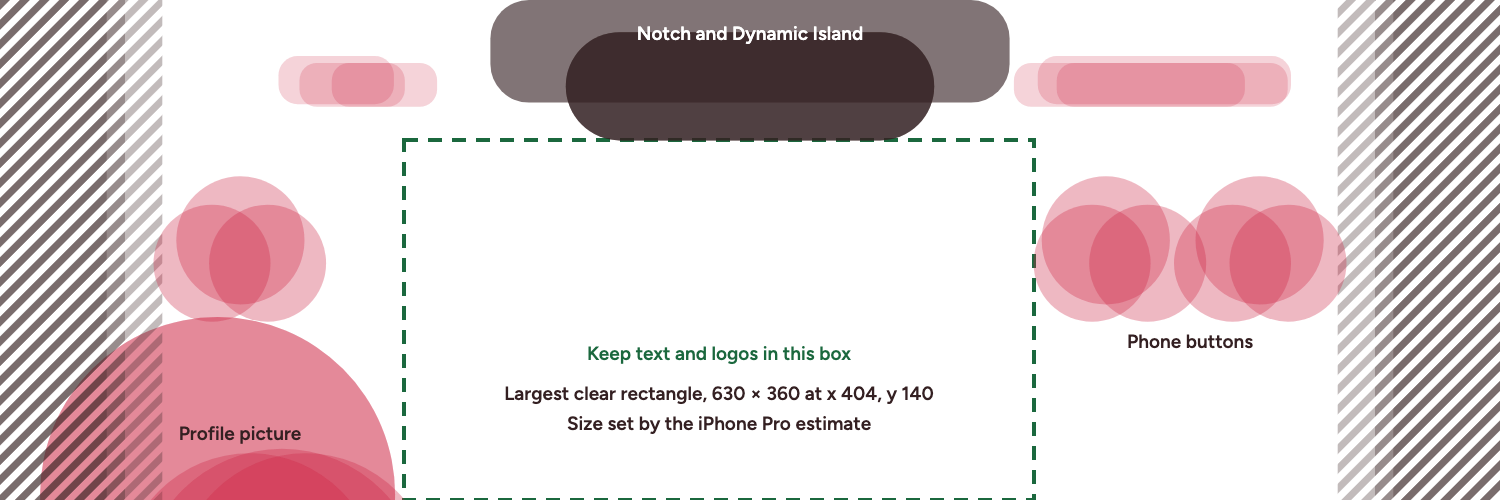
| x-banner-safe-zone-template.png | Printing out, or looking at while you sketch |
| x-banner-safe-zone-template.svg | Editing the marks, or scaling them without loss |
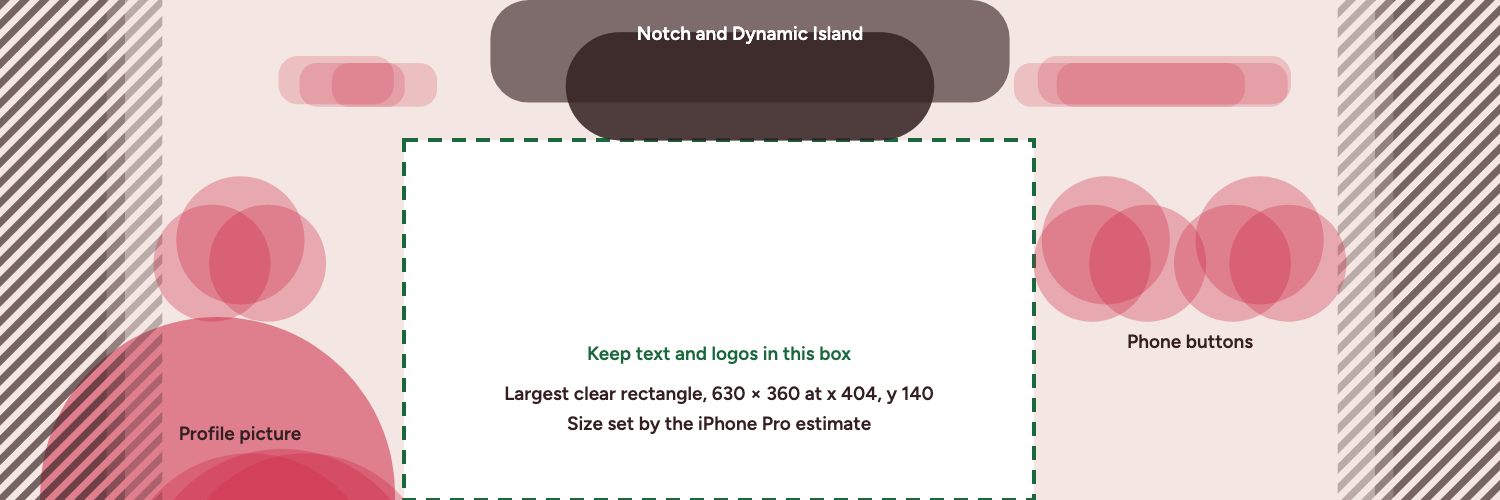
| x-banner-safe-zone-overlay.png | Laying over your own artwork in a design tool |
What do the marks on the template mean?
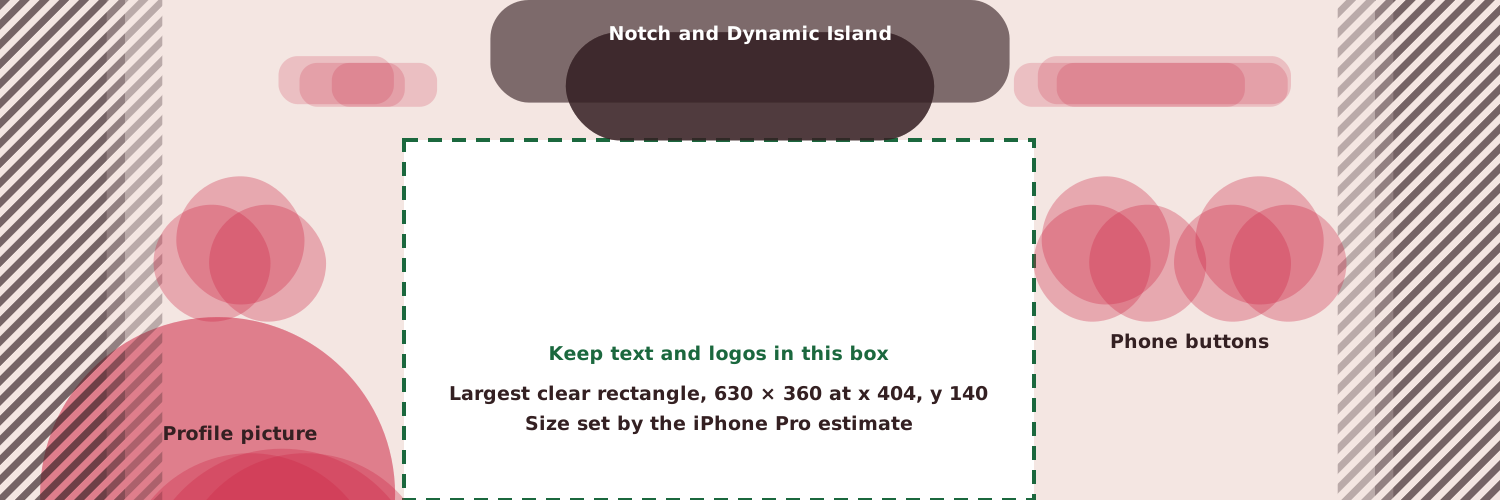
The dashed box is the largest clear rectangle, 630×360 pixels at x 404, y 140, on the five devices mapped here. The iPhone Pro estimate sets that size. On measured devices alone, meaning web, tablet and the iPhone 13, the largest clear rectangle is 647×397 at x 395, y 103. Put text, logos and faces inside it. If your profile picture is square, start at x 434 instead. Web, tablet, the iPhone 13 (measured), the iPhone Pro (estimated) and the iPhone Pro Max (estimated) are stacked, so each shape appears once per device.
- Red circles at the bottom left are the profile picture on each device.
- Red circles higher up are the back, assistant and search buttons in the X app.
- Dark shapes at the top are the notch and the Dynamic Island.
- Pale shapes beside them are the clock and status icons.
- Hatched strips at the left and right are the parts the X app cuts off.
The strips overlap because the cut differs by device, about 125 pixels per side on the iPhone 13, about 162 on the iPhone Pro (estimated), and about 107 on the iPhone Pro Max (estimated). The safe zone guide separates them into one diagram per device.
How do you use the overlay in Figma?
- Create a frame at 1500×500 pixels.
- Build your background and artwork in the frame.
- Place the overlay PNG at the top of the layer list, at x 0 and y 0.
- Lock the overlay so you do not drag it by accident.
- Move your text and logos until they sit inside the dashed box.
- Hide the overlay and export the frame.
How do you use the overlay in Photoshop?
- Create a document at 1500×500 pixels.
- Place the overlay PNG as a new layer at the top of the layer stack.
- Lower its opacity if the marks distract you from the artwork.
- Arrange your layers so anything important stays in the dashed box.
- Turn the overlay layer off before you export.
Hiding the overlay matters in both tools. If you export with it showing, the marks end up on your live banner.
Which guide lines can you set by hand?
Three lines give you the rectangle in any design tool. Add vertical guides at x 404 and x 1034, and a horizontal guide at y 140. The fourth side is the bottom edge of the banner, or y 440 if you allow for X's cropping note.
What should you check before you upload?
- The overlay is hidden, and no marks show in the exported file.
- The file is 1500×500 pixels, saved as JPG or PNG.
- The file is under 2 MB, which is the conservative target.
- Your name, logo and any text sit inside the dashed box.
- The background still reads well with its edges hidden.
When should you use the SVG instead of the PNG?
Use the SVG when you want to change the marks. Each one is a plain shape, so you can recolor it or thicken its lines. The shapes are not grouped by device, so removing one device means picking out its shapes by hand. The SVG comes from the same device numbers as the rest of this site, and the PNG and the overlay are renders of it.
Which devices do these cover?
Five. Web and tablet were measured on x.com, and the iPhone 13 was measured from the X app. The iPhone Pro and iPhone Pro Max are estimates, with iPhone 13 layout rules applied to those screens. Android was not measured. The measurement notes explain each one, and the banner size guide covers the rest of the spec. If your banner is already live and looks wrong, read the guide on banners cut off on iPhone.